
On This Page
- Why Inventory Sync Is Essential for WooCommerce Stores?
- Common WooCommerce–Zoho Integration Issues
- Most Store Owners Misconception
- Step-by-Step Troubleshooting Guide
- Pro Tips to Prevent Future Inventory Mismatch
- Parting Words
Get in Touch
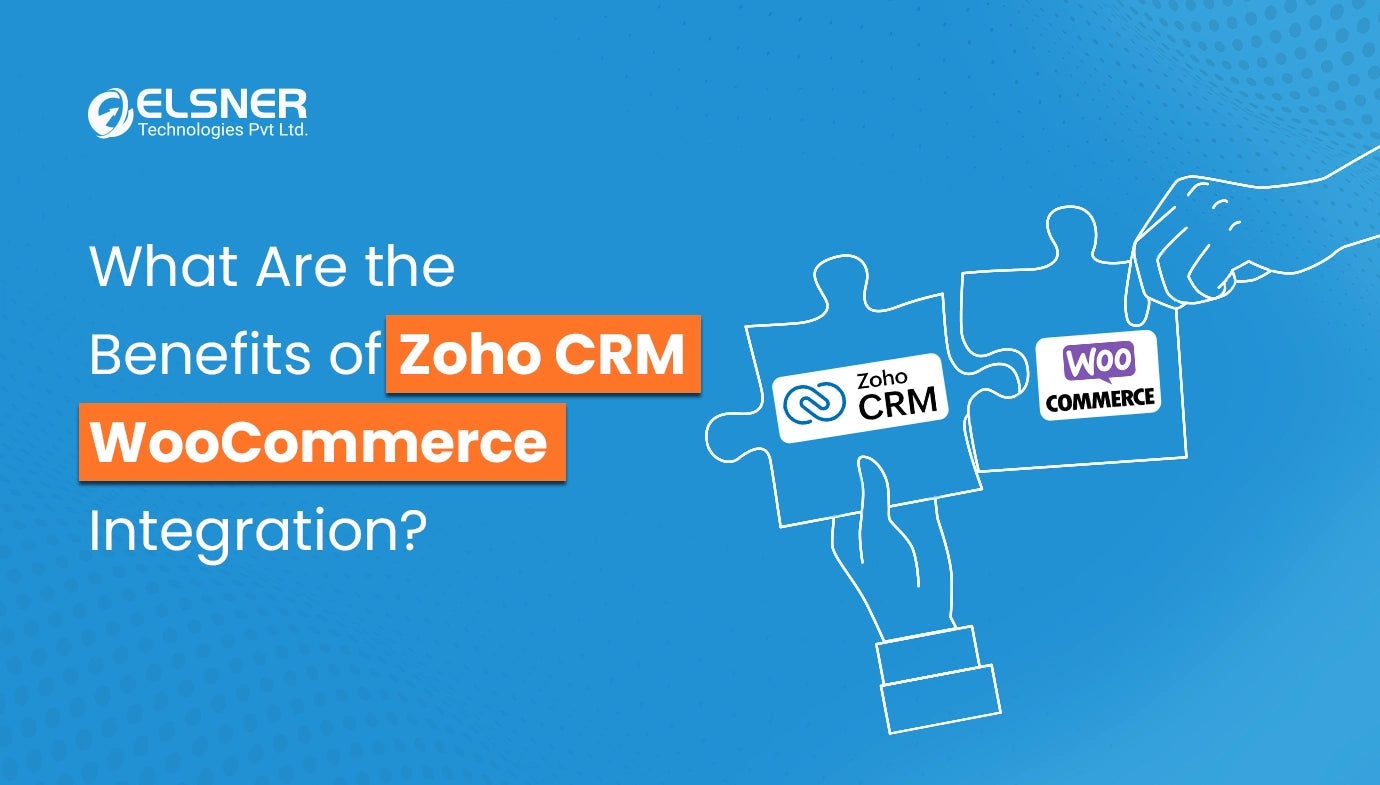
If you are operating a WooCommerce store, keeping your inventory in sync with exact precision is not merely a matter of convenience but rather a necessity of the highest importance. Just one inconsistency can lead to overselling, unfulfilled orders, negative customer feedback, and even financial losses. So, the majority of US-based WooCommerce shops have integrated their WooCommerce Zoho CRM and WooCommerce integration with Zoho Inventory in order to make stock, orders, and product management automated.
However, numerous store owners encounter serious WooCommerce–Zoho integration issues when using WooCommerce Zoho CRM integration for inventory sync across both platforms. There are times when product updates fail, when orders do not show in Zoho, and when the integration just ceases to work without any indication.
This blog pinpoints exactly what fails, the reasons behind it, and how you can go through the troubleshooting process step by step. If you are a store owner, developer, or operations manager, this manual will help you resolve stubborn issues and prevent them from recurring.
Why Inventory Sync Is Essential for WooCommerce Stores?
Inventory accuracy is the primary factor that either makes your ecommerce operations successful or causes them to fail. If your stock figures are inaccurate, you may oversell items that are not in your possession, issue refunds, damage your customer experience, and disorganize your workflow. WooCommerce stores that sell through multiple channels have even more to lose.
In an ideal world, WooCommerce, Zoho CRM, and Zoho Inventory would collaborate to automate:
-
Syncing of stock levels
-
Order movement
-
Item availability across locations
-
Real-time product updates
However, if the WooCommerce inventory is not updating automatically, the automating chain is interrupted. This subsequently causes:
-
Incorrect stock counts
-
Delayed fulfillment
-
Product visibility issues on the storefront
-
Loss of operational trust in your integration
This is the main reason to optimize your WooCommerce Zoho integration. Having the correct configuration ensures uninterrupted data flow between systems, saving you time that would otherwise be spent on manual work and keeping your customers satisfied.
Common WooCommerce–Zoho Integration Issues
Despite having a properly configured plugin, numerous store owners are still experiencing frequent WooCommerce Zoho integration issues. Below are the common problems they have reported:
1. Product Data Not Syncing
This covers the instances of completely missing products, partial attribute syncing, and variations not being properly synced. Most of the time, the reason for the WooCommerce Zoho plugin not syncing products is that:
-
SKUs are not the same
-
Product types do not match
-
Required fields by Zoho are not there
2. Stock Levels Not Updating Correctly
This is the biggest frustration. You may see one stock value in WooCommerce and a completely different one in Zoho.
The reasons are:
-
Delayed API sync
-
Failed cron jobs
-
Wrong warehouse mapping
-
Incorrect SKU association
3. Orders Not Updating in Zoho Inventory
WooCommerce orders are supposed to be automatically pushed into Zoho for fulfillment. However, when the syncing is broken:
-
Orders are still in WooCommerce
-
Zoho doesn’t record sales
-
Auto-stock updates never initiate
4. API and Plugin Connection Failures
These problems frequently appear as generic errors or failed sync logs. The leading causes are usually:
-
Expired API tokens
-
Changed credentials
-
Incorrect scopes or permissions
-
Server timeout or plugin conflict
Individually, these problems are bad enough, but together, they can cause a vicious cycle of confusion and manual fixes. To be able to maintain a stable WooCommerce Zoho CRM integration, you need to be aware of these issues.
Most Store Owners Misconception
The majority of problems in the WooCommerce Zoho integration are not due to bugs but rather to incorrect configuration or missing details. Even experienced users who manage platforms and tools like Magento Addons can sometimes overlook simple setup steps. Basically, store owners and managers overlook the following:
1. Not Updating API Credentials
Zoho often refreshes tokens. However, if you allow your credentials to expire, all automated syncing will halt. People often forget to renew tokens regularly, which eventually causes syncing to stop.
2. Wrong Plugin Configuration
Just one wrongly filled field or one mapping error in your WooCommerce integration with Zoho Inventory settings can wreak havoc. The most common issues are SKU mismatches and warehouse errors.
3. Manual Edits Overriding Automation
If you are editing stock manually in WooCommerce or Zoho while the automation is still running, you will create conflicts that prevent updates from syncing correctly.
4. Ignoring Sync Logs and Error Messages
The majority of plugins offer detailed sync logs. By not paying attention to these, troubleshooting WooCommerce Zoho API errors becomes much more difficult than it really is.
Step-by-Step Troubleshooting Guide
This document provides a step-by-step workflow to fix WooCommerce Zoho inventory sync problems:
1. Recheck Plugin Setup & Credentials
-
First of all, make sure that your Zoho API token is still valid and working
-
Check if the correct Zoho organization is being used
-
Make sure that any updates have not reset the plugin settings
2. Validate API Access & Permissions
For the Zoho modules to work, they must be accessible via the API. Ensure that:
-
Modules Inventory, Items, Sales Orders, and Customers are turned on
-
The API scopes are in line with your plugin requirements
-
Your Zoho admin hasn’t blocked your access
3. Verify Product SKUs and Mapping
Firstly, SKUs have to:
-
Be unique
-
Exactly match between WooCommerce and Zoho
-
Have variations included if that is the case
Improper SKU mapping is the leading cause of unsuccessful sync attempts.
4. Test Order Syncing in Real Time
Make a test purchase:
-
Is the order being pushed from WooCommerce to Zoho?
-
Is Zoho updating the stock levels?
-
Is the newly updated stock being sent back to WooCommerce?
If the failure occurs at any point, pinpoint the workflow section where you have a problem.
5. Review Error Logs and Resolve Conflicts
The majority of logs will unveil problems like:
-
API limit going beyond
-
Attempt being unauthorized
-
Item not located
-
SKU conflict
-
Timeout errors
Work through the issues one at a time and then re-sync.
Usually, taking the above steps resolves 90% of the shame of WooCommerce Zoho CRM sync issues.
Pro Tips to Prevent Future Inventory Mismatch
Prevention is more important than one-time fixes. Here is how you can resolve inventory mismatch in WooCommerce and Zoho before it becomes a business-critical issue:
1. Update Your Plugin Regularly
Current versions close security holes, improve compatibility, and increase the reliability of syncing.
2. Automate Sync Frequency
Allow frequent cron jobs so that you won’t have to worry about delayed updates.
3. Train Staff to Avoid Manual Overrides
If your employees manually change stock levels in WooCommerce or Zoho, your sync will be continuously disrupted.
4. Setup Alerts for Low Stock & Sync Failures
Prompt notifications help prevent costly overselling.
Parting Words
Inventory sync problems between WooCommerce and Zoho are less common than most store owners think. Nevertheless, with the correct setup, regular maintenance, and appropriate troubleshooting, the errors can be kept at bay and smooth automation ensured. When features like the WooCommerce WorldLine Payment Gateway work seamlessly along with an adequately set up WooCommerce Zoho integration, Zoho CRM WooCommerce integration, or WooCommerce integration with Zoho Inventory, it becomes beneficial not only to your business but also to your customers, as they get accurate, reliable shopping experiences.
If you want to eliminate these issues and enjoy seamless automation, get the WooCommerce–Zoho Integration plugin today.
Frequently Asked Questions

Harshal Shah
Harshal Shah is the Founder and CEO of Elsner Technologies, a leading global IT and eCommerce development company. With over two decades of experience in the industry, Harshal has spearheaded innovative projects, particularly in Magento and WordPress development. His entrepreneurial spirit and technical expertise have positioned Elsner as a top solution provider for businesses seeking cutting-edge digital transformation.